Basic Commands
Using Basic CloudShell Commands
In this step, we will use several basic CloudShell commands that are commonly used in Cloud Journey lab exercises.
- Use the
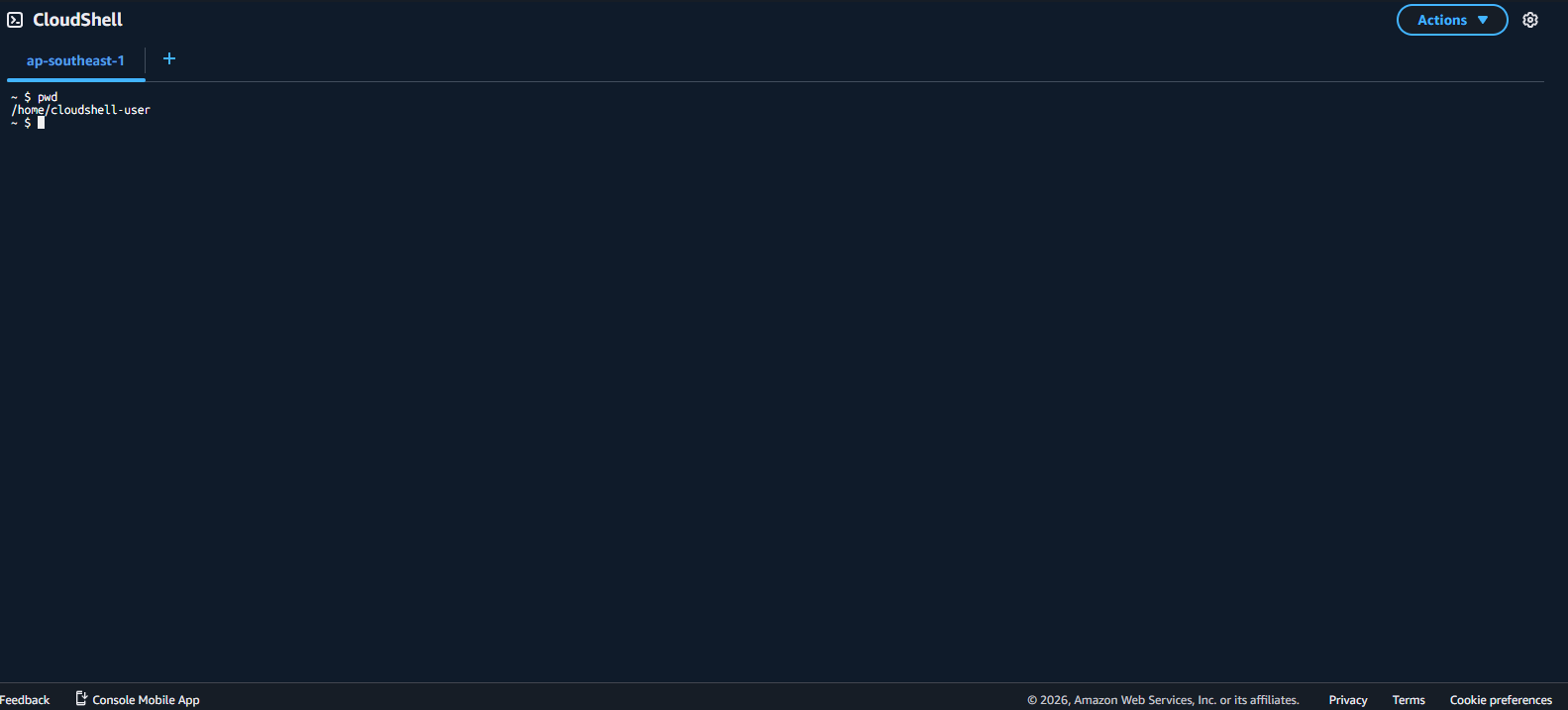
pwdcommand to view the current working directory path.
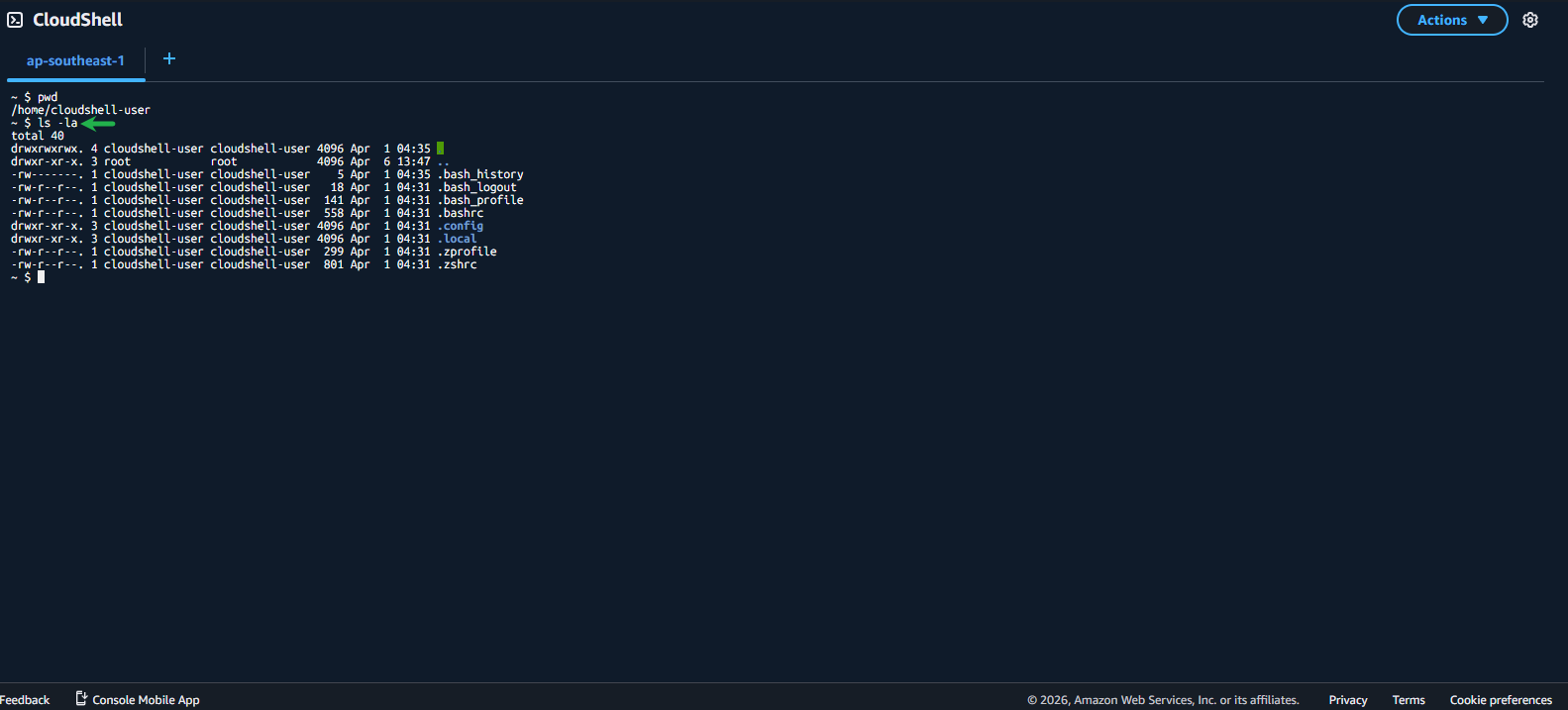
To view files and directories along with the permissions of the user and group for each, enter the command
ls -la.Here you will see the rwx permissions, where r=read, w=write, and x=execute.
Each group of 3 characters represents the permissions of the user - group user - other user respectively.
- Example: the .config folder has permissions rwxr-xr-x. Split into 3 parts: rwx | r-x | r-x. This means the user has rwx, the group user has r & x, and the other user has r & x. Where user = cloudshell-user and group user = cloudshell-user.
(Open the image in a new tab if it is not clearly visible.)
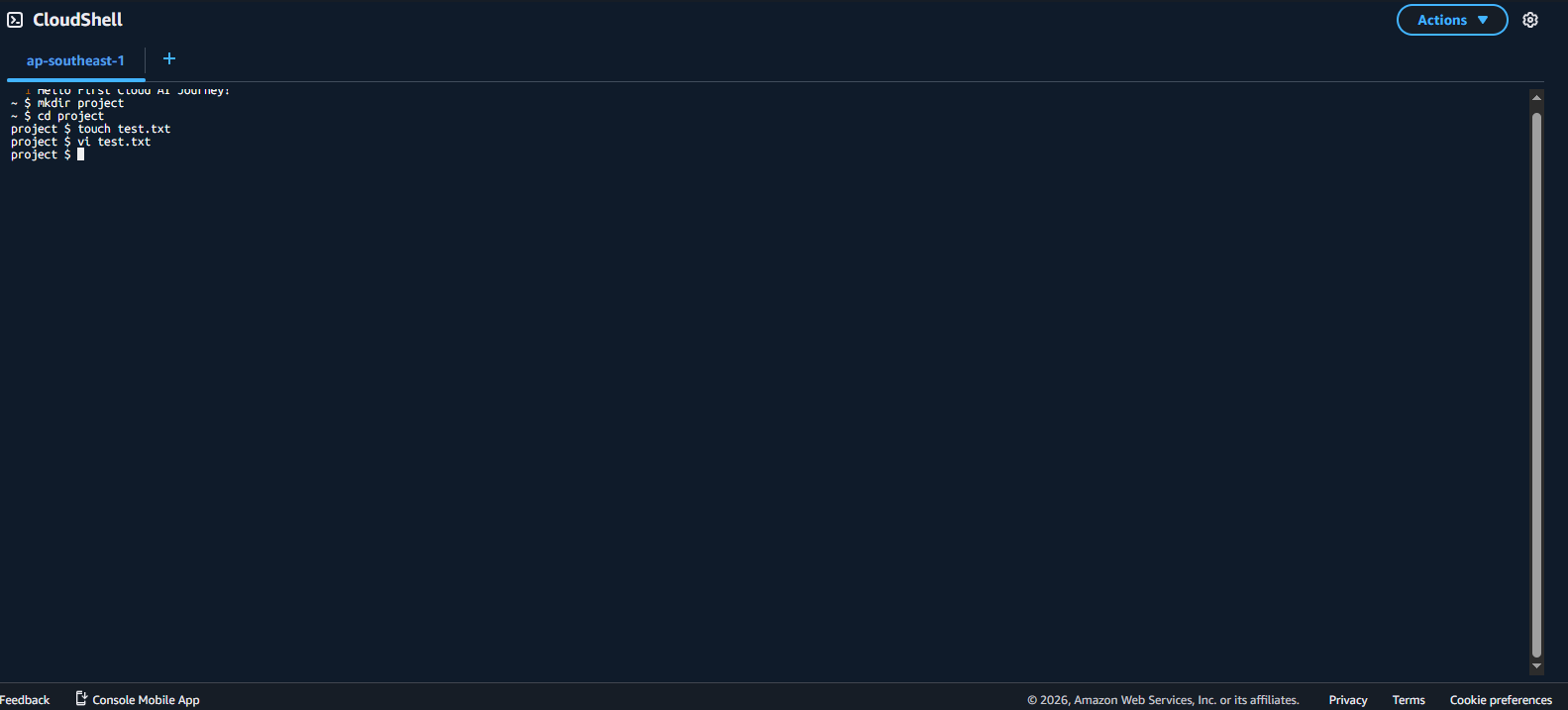
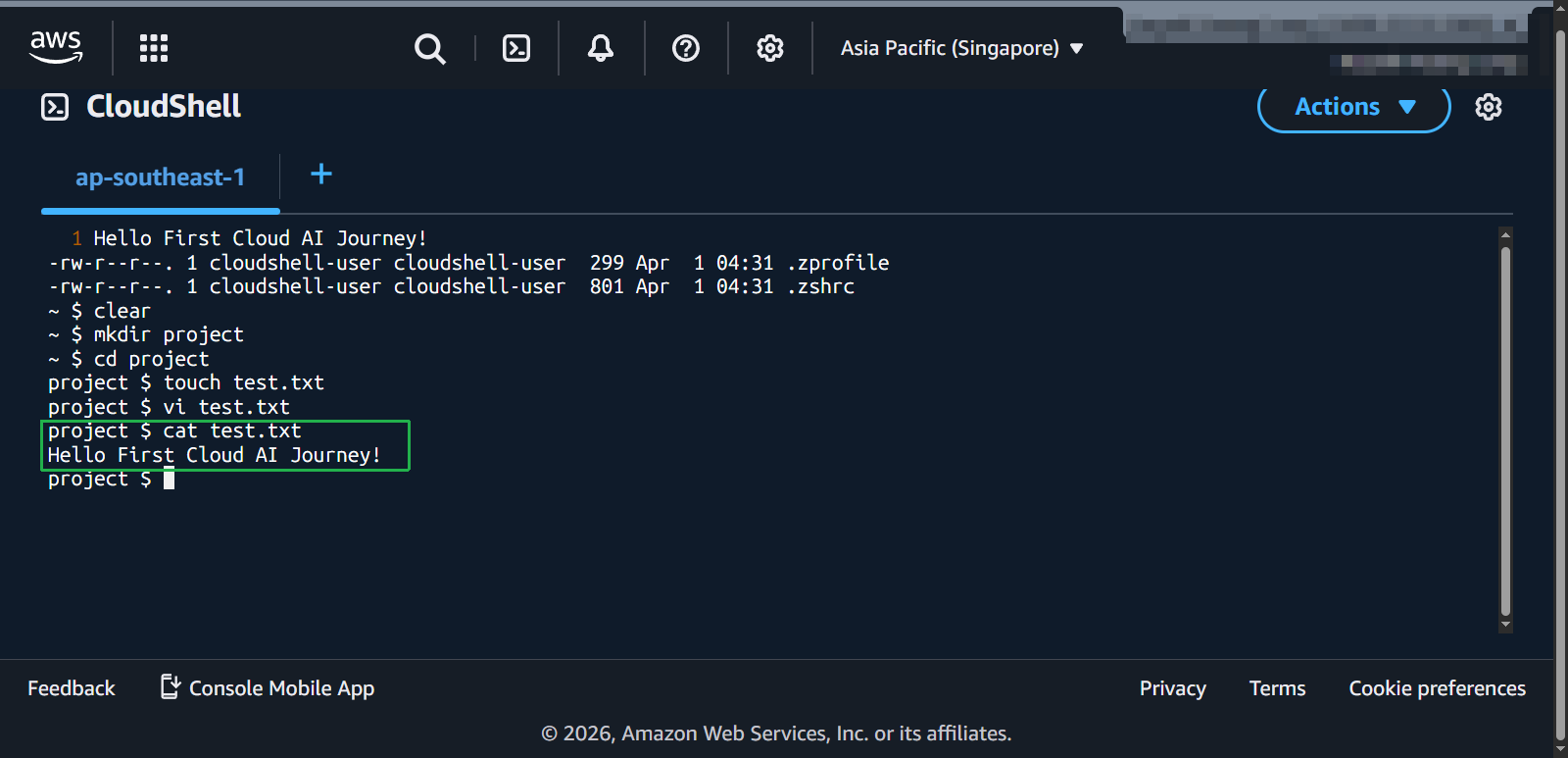
Now we will create a directory, create a file, edit it, and read its content.
- Use the command
mkdir projectto create a directory. - Navigate into the directory using
cd project. - Create a file inside the directory using
touch test.txt. - To write content to the file test.txt, enter
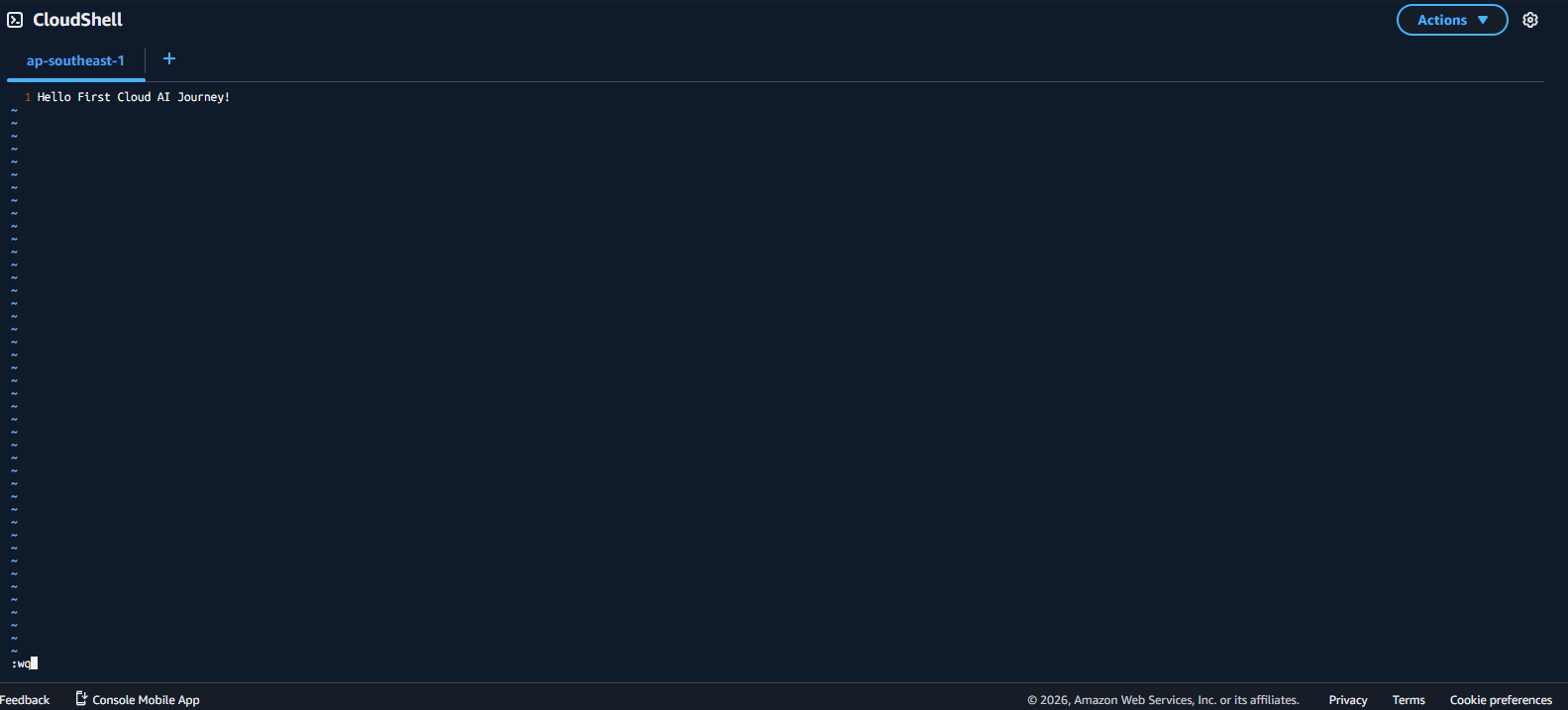
vi test.txt, then pressito begin editing the file. Type some content, for exampleHello First Cloud AI Journey!. Press ESC and type:wqto save and exit.
- View the content of the file just written using
cat test.txt.
- Use the command